How do I secure my account?
NOID provides you with many possibilities to use the program safely, but it is important not to neglect the installation of this protection
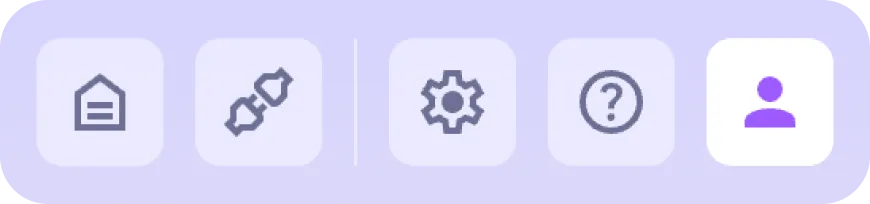
To access the security settings, open the account page by clicking on the corresponding icon.
Then go to the "Security" section
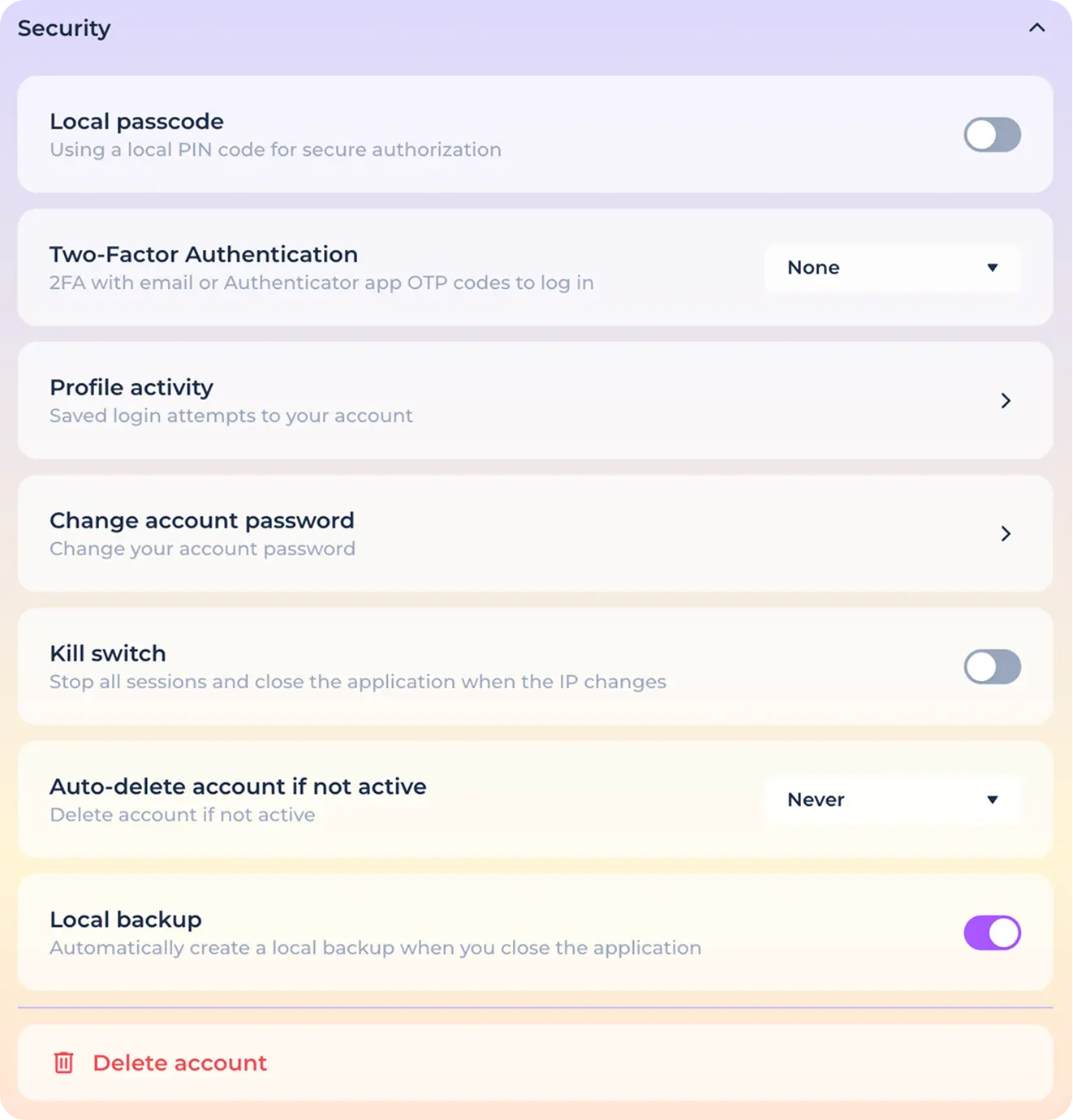
Setting the local pin code
A local pin code is a password used to quickly unlock a program on a specific device. If you use a pin code, you will be able to use the quick lock feature, which also hides (but does not close) running identities, as well as speed up authorization after launching the application.
Press the corresponding switch to set the local pin code.

In the window that opens, enter and repeat the desired password.
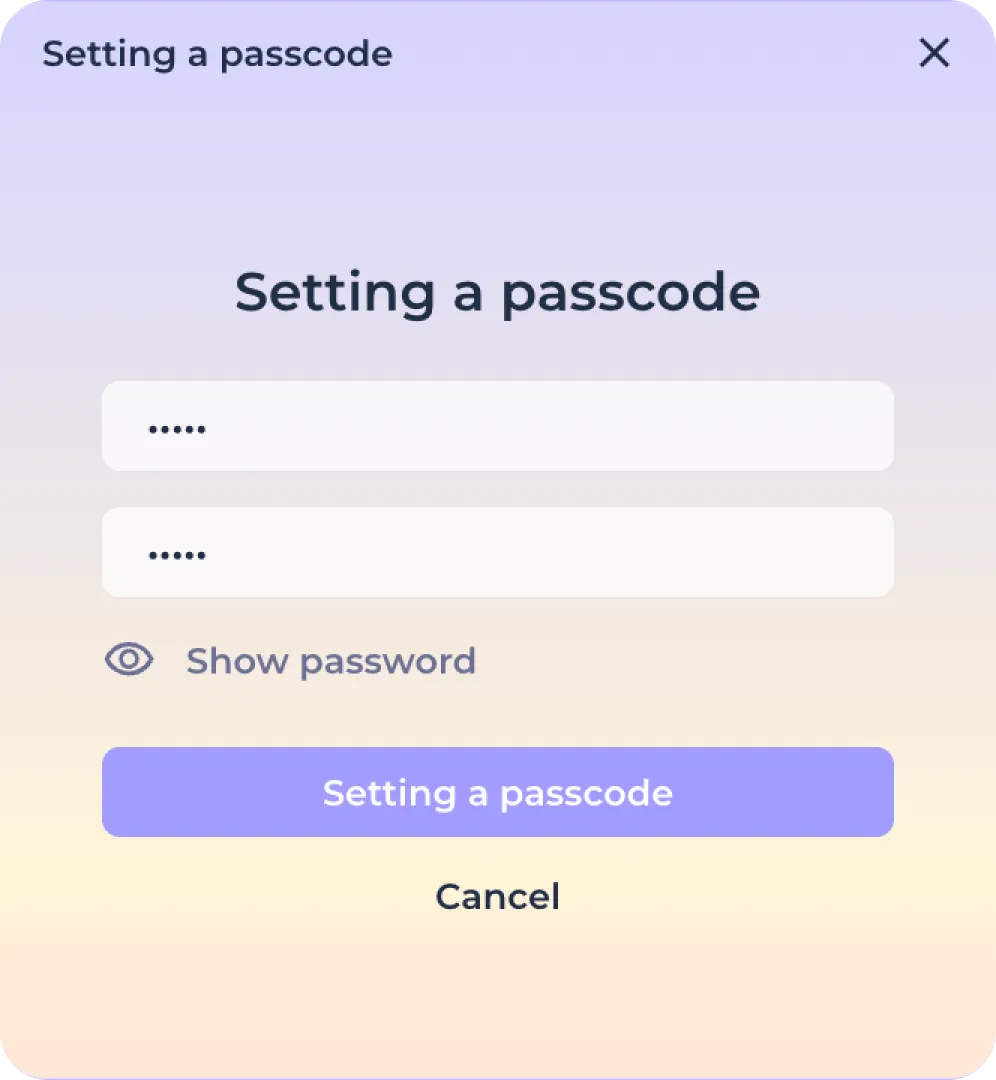
Use the "Show Password" button to display the characters to be entered.

Then confirm the installation by clicking the "Set Password" button.

Or cancel the installation by pressing the "Cancel" button.

After setting the local pin code, you will be able to use the quick lock function on the home screen.

And quickly open the application after locking or authorization.
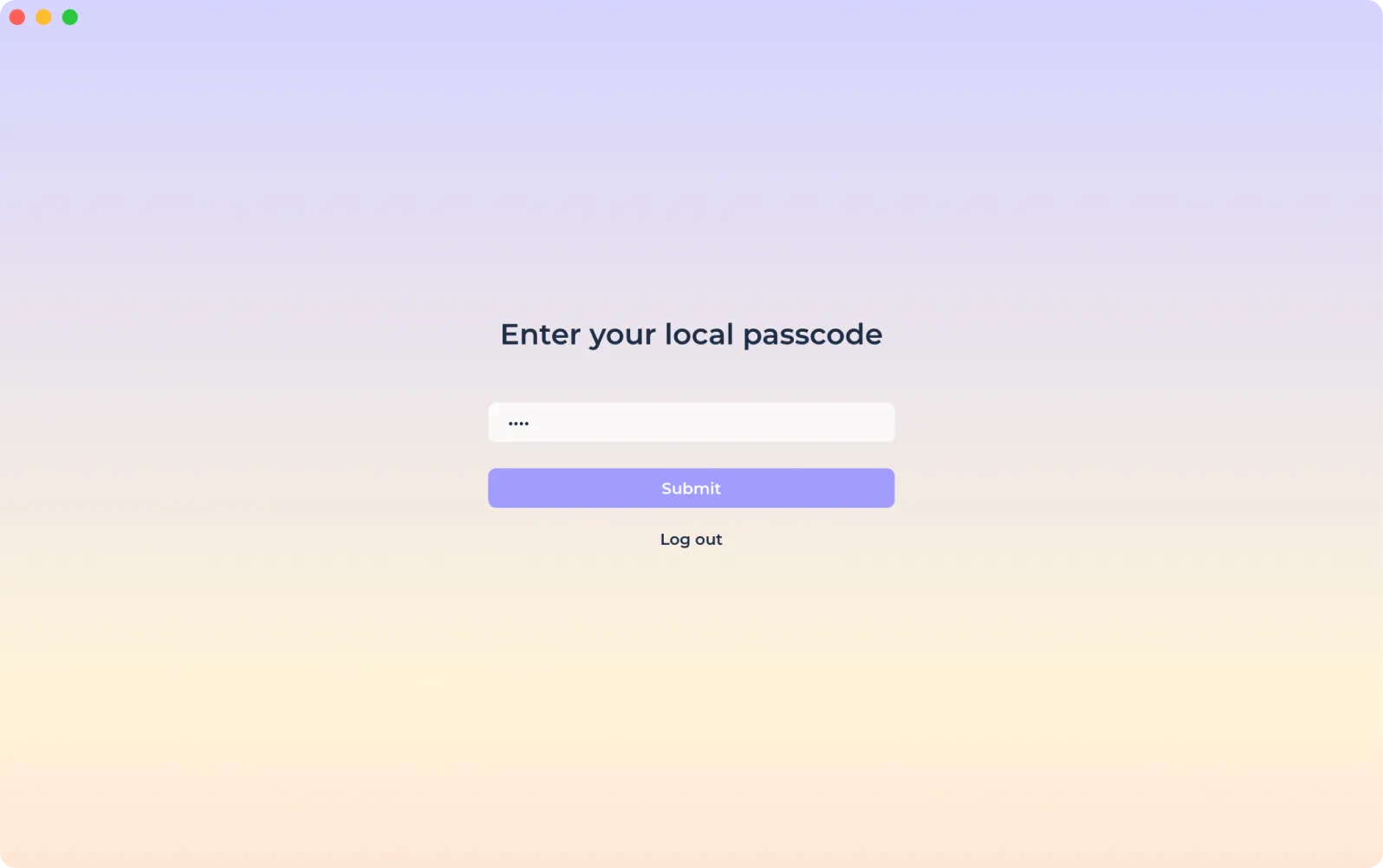
Please note that if you forget your local pin code, you will need to exit the application using the "Exit" button.

After that a new authorization will be required and the local pin code will be reset. You will need to set the code separately on each device you use and it cannot be restored.
Two-factor authentication
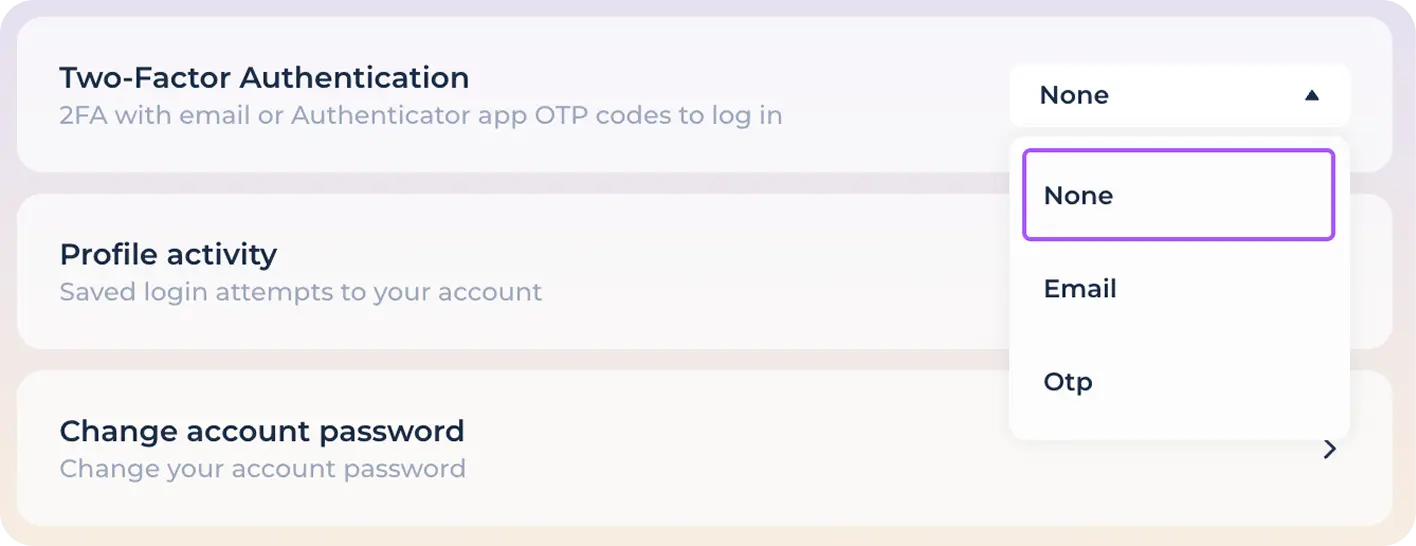
Always use 2FA to protect your account from unauthorized login from a new device. You can choose from the following two-factor authentication options: application-authenticator or email. In order to select the required type of 2FA open the drop-down list and select the required one in the corresponding item.
If you select e-mail for two-factor authentication, enter the code received (to the e-mail address specified during registration) in the window that opens.
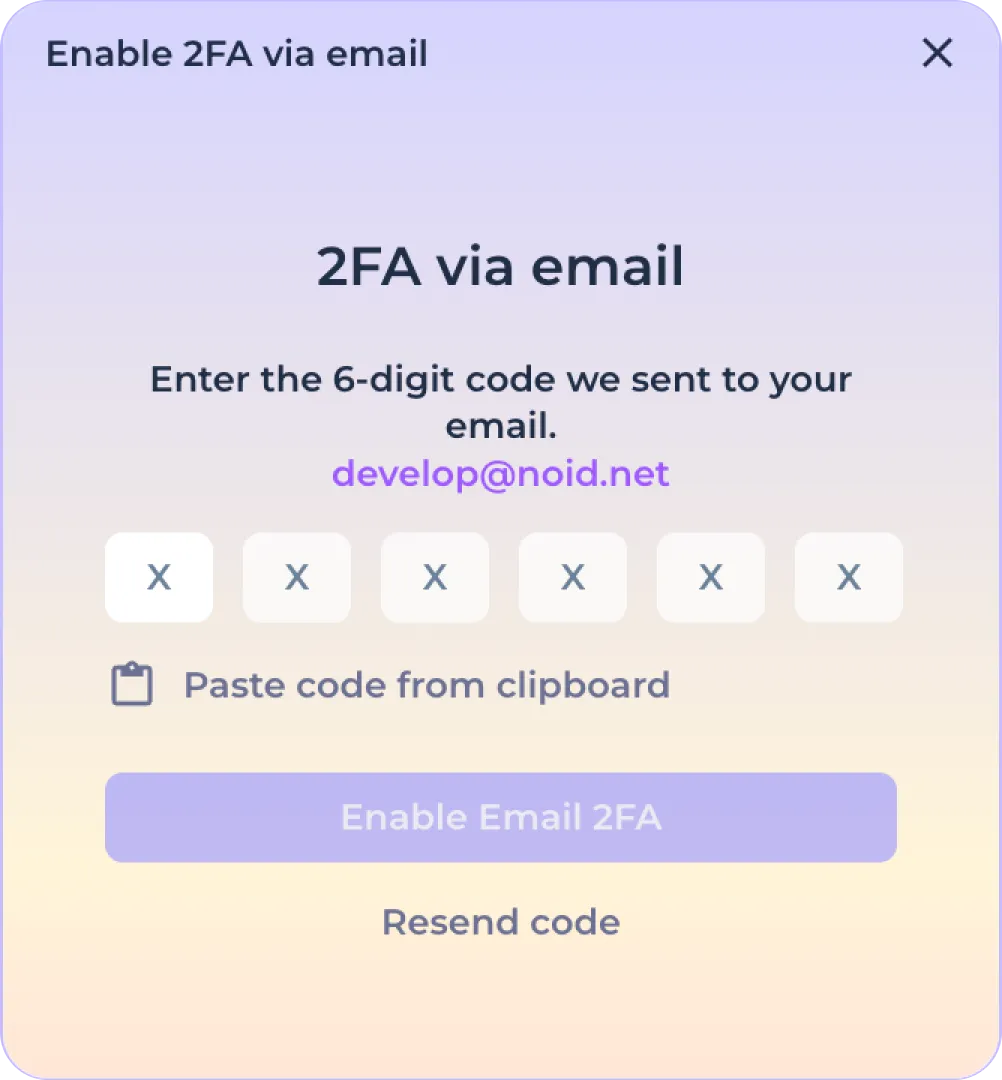
Use the copy from clipboard button to quickly paste code previously copied from the mailbox.

If you do not receive the code, please resubmit by clicking on the "Resubmit" button.

Click on the "Enable 2FA" button to finish setting up two-factor authentication via mail.

From now on, each time you try to log in to your account from a new device, you will need to enter the one-time password that you received to the mailbox used to register your account. Please note that without access to the mailbox, you will not be able to restore or log in to your account.
If you select an authenticator application, you will be prompted to perform two steps in the window that opens.
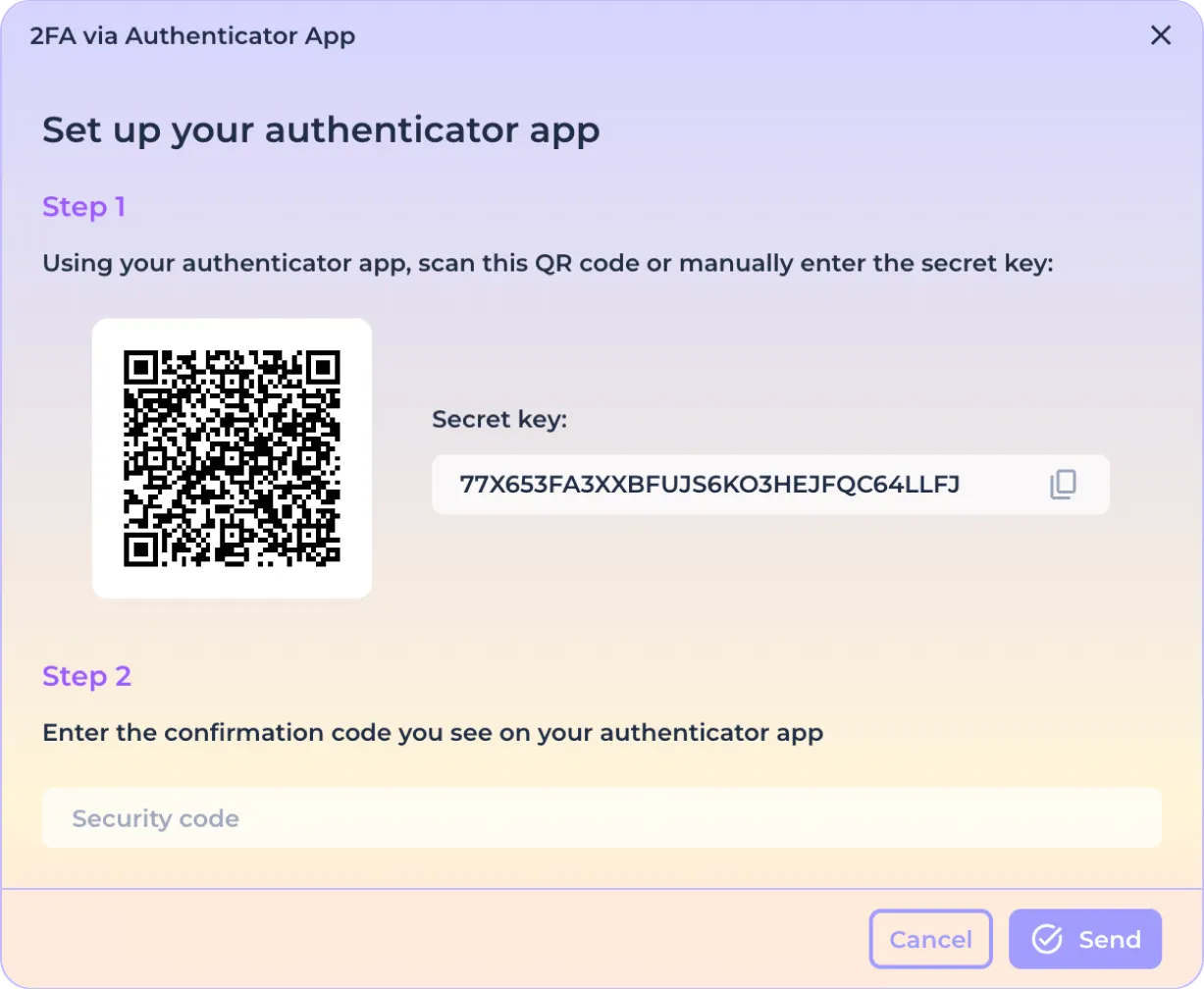
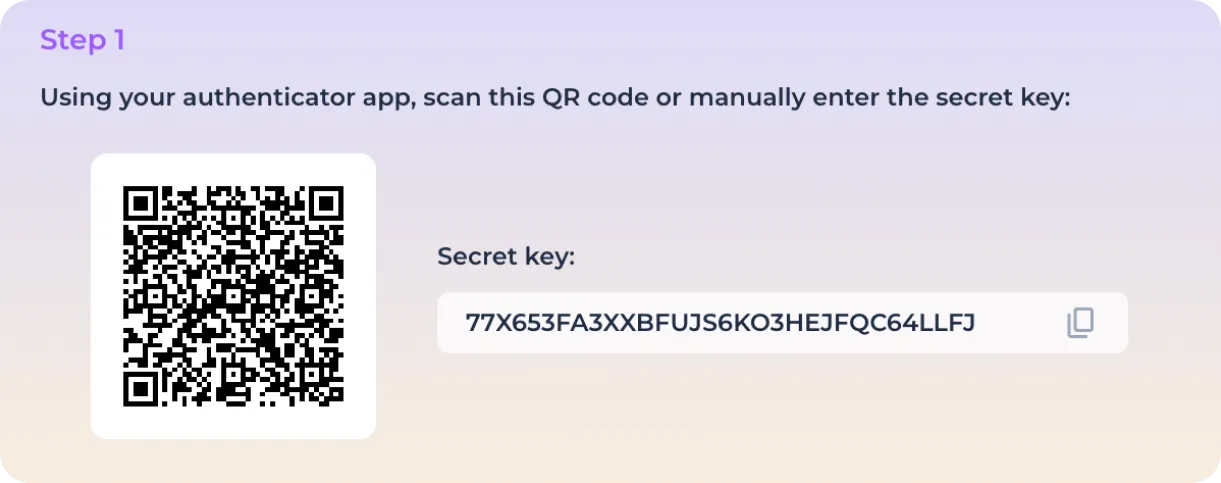
Step one. Copy the code or point your smartphone camera (using the authentication app) at the QR code,
Step two. Enter the code received in the application into the field provided for this purpose.
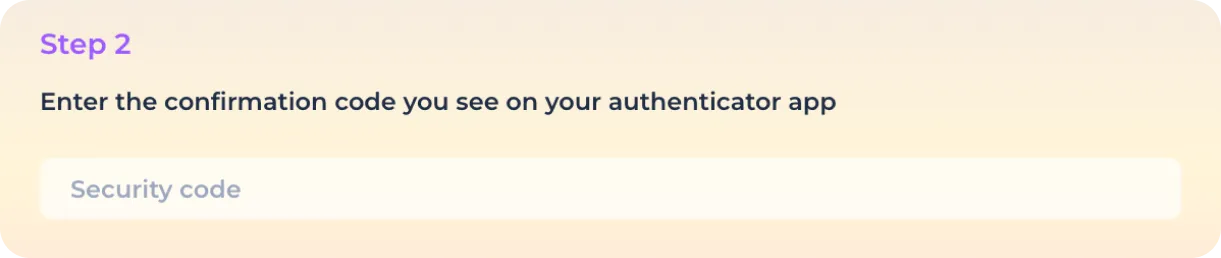
Click the "Submit" button to complete the connection of the authenticator application.

Or click "Cancel" to cancel the application connection.

From now on, each time you try to log in to your account from a new device, you will need to enter the one-time password you received in the authenticator application. Please note that you will not be able to restore or log in to your account without access to the app.
Active sessions
To view active sessions (devices on which you have logged in to your account), open the corresponding menu item.

Change password
Always use a strong password that contains letters and characters in different case. Never use the same password for multiple accounts. To change a previously set password, open the corresponding menu item.

To change the current password, enter the current password, enter the new password, and repeat the new password in the window that opens.
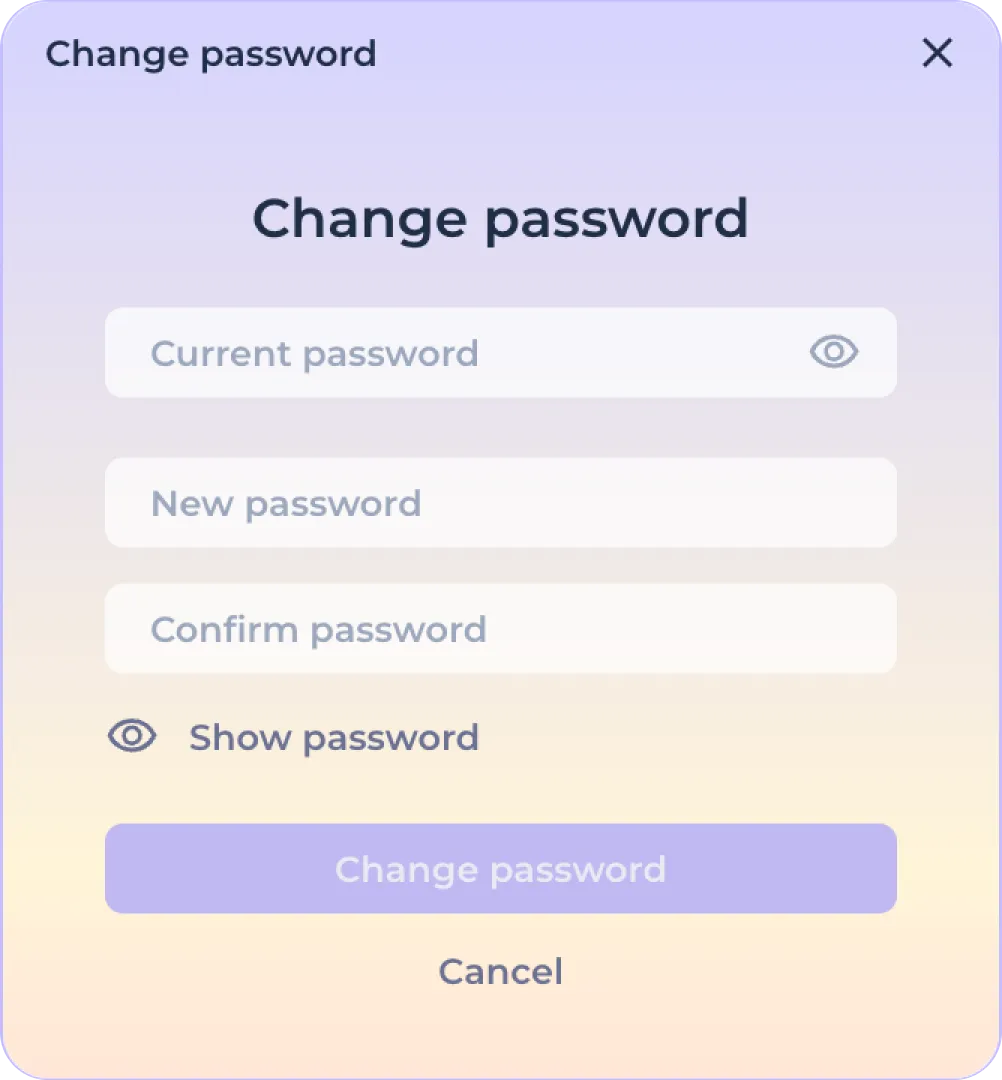
Use the "Show Password" button to display the characters to be entered.

After entering the current password and the new password, click on the "Change Password" button to complete the password change.

Or click the "Cancel" button to cancel the new password setting.

Kill-switch
The "Kill-switch" function is designed to instantly log you out of your account in case of loss of Internet connection and can be used to provide additional security when moving or putting the computer to sleep (closing the lid). To activate the function, activate the corresponding switch.

Automatic account deletion
This feature is designed to provide additional security in case of physical theft of the device. Since NOID provides the ability to locally encrypt personal data tied to an account, deleting the account makes it impossible to retrieve the password, which makes it impossible (or rather time-consuming) to decrypt the stored data.
To activate automatic account deletion, select the desired inactivity period in the drop-down list of the corresponding section.
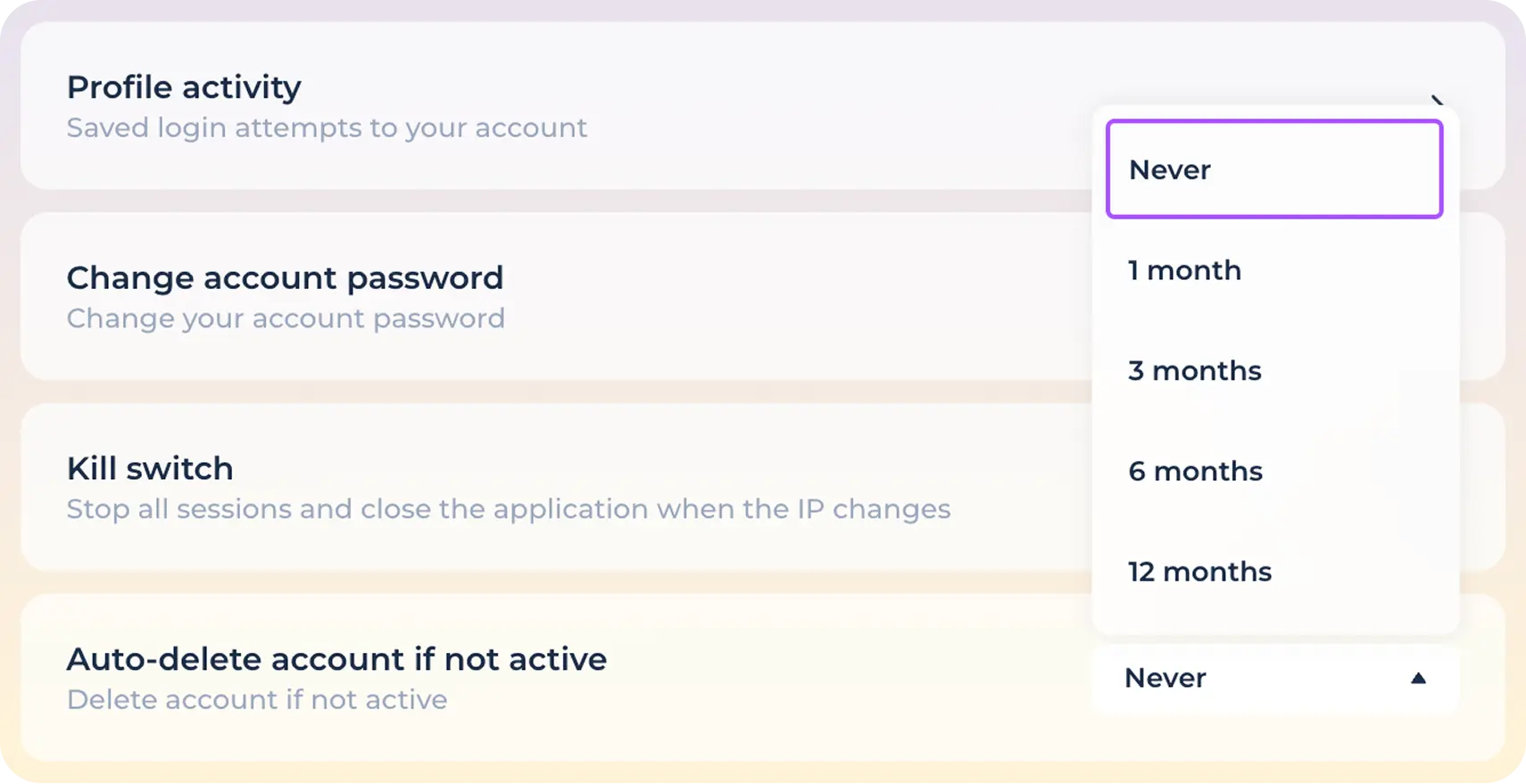
If you set a time period in this section, the account will be automatically deleted after the specified period of inactivity. Please note that a deleted account cannot be restored.
Instant account deletion
To quickly delete an account without the possibility of restoring it, click on the corresponding item.

Then confirm that you understand that the account will be irrevocably deleted and the stored identities will be lost.
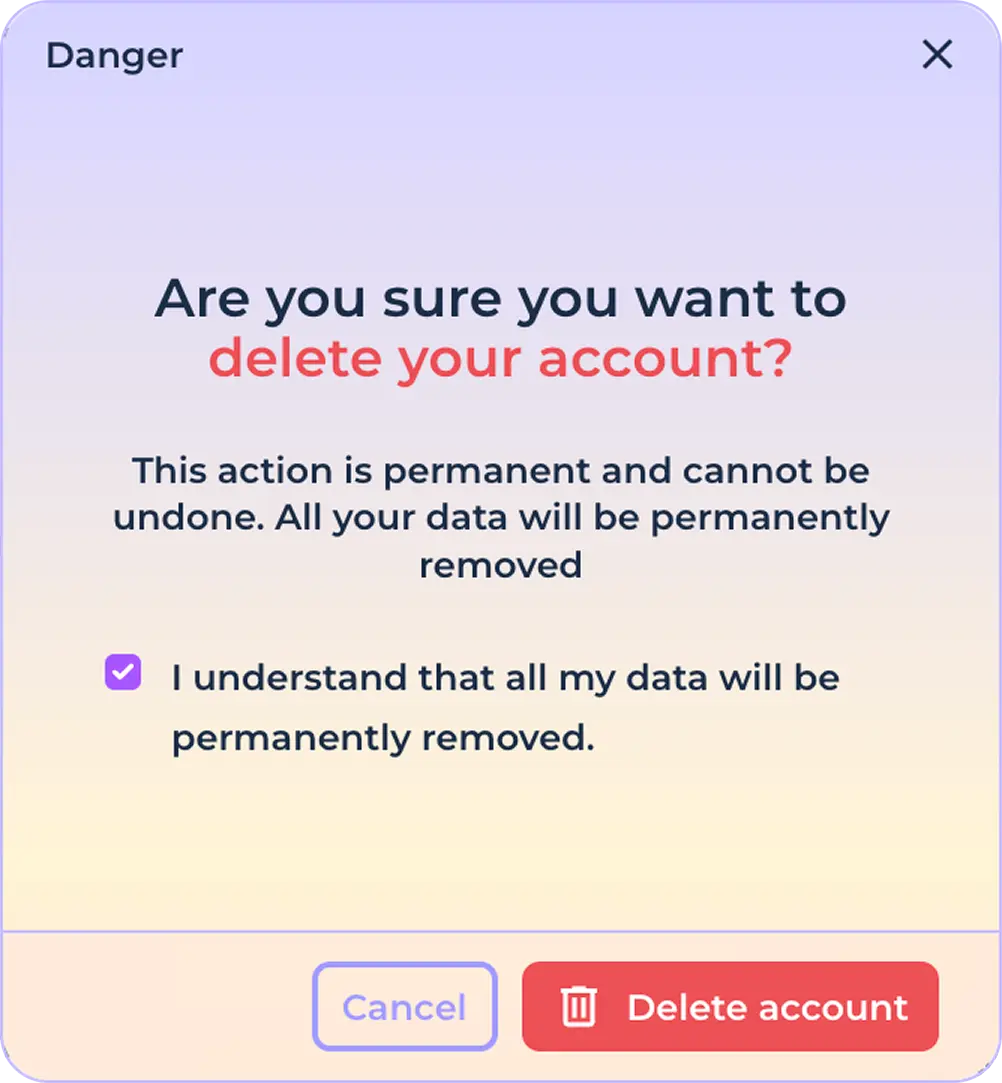
Click the "Delete Account" button to complete the deletion.

Or click the Cancel button to cancel account deletion.

Please note that deleting an account, although it makes it impossible (or very difficult) to decrypt the remaining data, it does not replace the complete removal of the application from the computer. In order to completely get rid of identities and the data stored in them you need to remove the application from your computer after deleting the account. To completely remove the data, it is enough to delete the application directory from the disk - the program leaves no traces in system or hidden partitions.