Working with saved connections
All user-saved connections are stored in a single connection center. To go to "Connections" use the corresponding icon.

Previously installed proxies are saved automatically for easy future use. You can also manually add a single proxy or a whole list of connections.
Adding a single proxy
To save an individual proxy click on the "Add Proxy" button

In the window that opens, enter the proxy data for the connection in the set format in the field provided.

You can see the list of supported formats when hovering over the input field (with tooltips enabled)
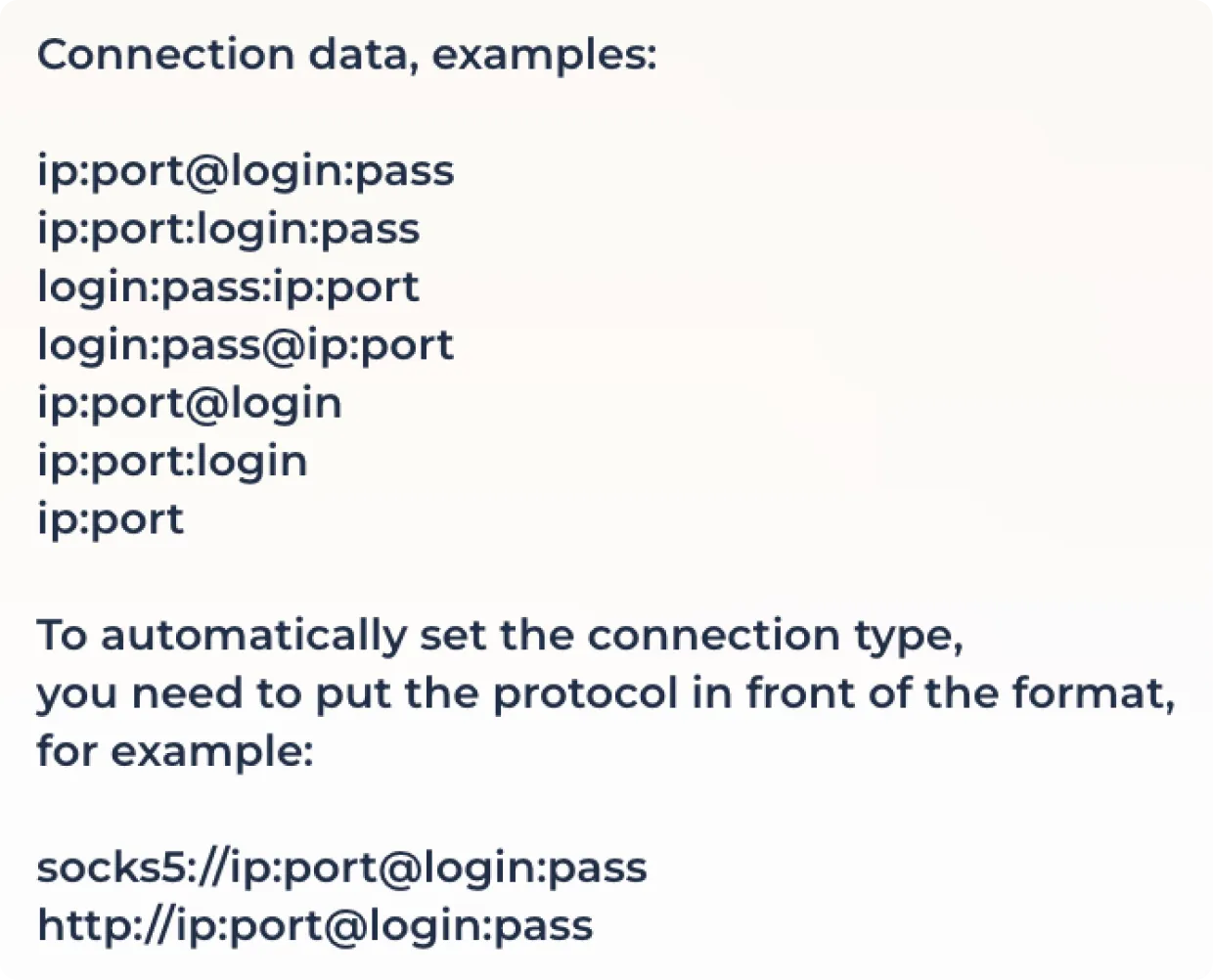
Click the proxy check button to check the connection and set the geo position.

Some proxy providers provide the option to use a proxy with outgoing IP address change via a link. If you need to use this feature, enter the IP change link in the field provided.

Click "Save" to save the proxy or "Cancel" to cancel adding the connection.

Mass proxy import
You can bulk upload proxies by pasting from a document or uploading a file. To start importing click on the import icon.

Copy and paste the proxy into the appropriate area, following the supported formats.
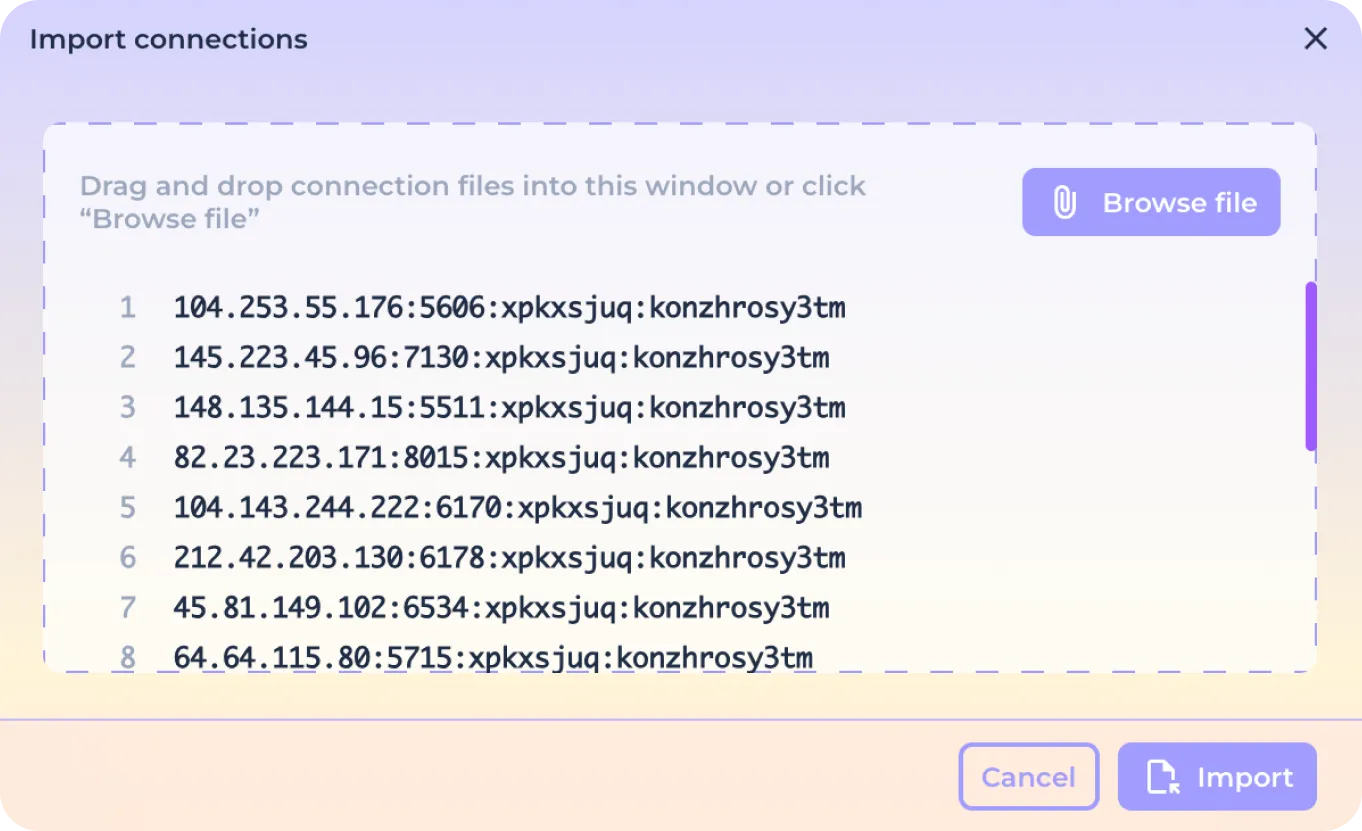
You can see the list of supported formats when hovering over the input field (with tooltips enabled).
Or click on the "Select File" button if you want to bulk download the proxy list as a file.

After opening the system dialog box, select the file with the list of proxies in *txt format
Click the "Import" button to complete the import or click "Cancel" to cancel the download.

After you confirm the download, the connections will be automatically verified, including their geo-position. If the connection is successfully validated, it will receive a country designation.

If the downloaded proxy fails to pass validation, you will see a display that the connection is not working.

Actions with saved connections
If necessary, you can check the connection using the connection check icon.

Use the delete icon to remove an unwanted connection from the list of previously saved connections.

Mass actions with saved connections
To quickly find the desired proxy among the saved ones, use the search function. You can search by country, city and IP address.

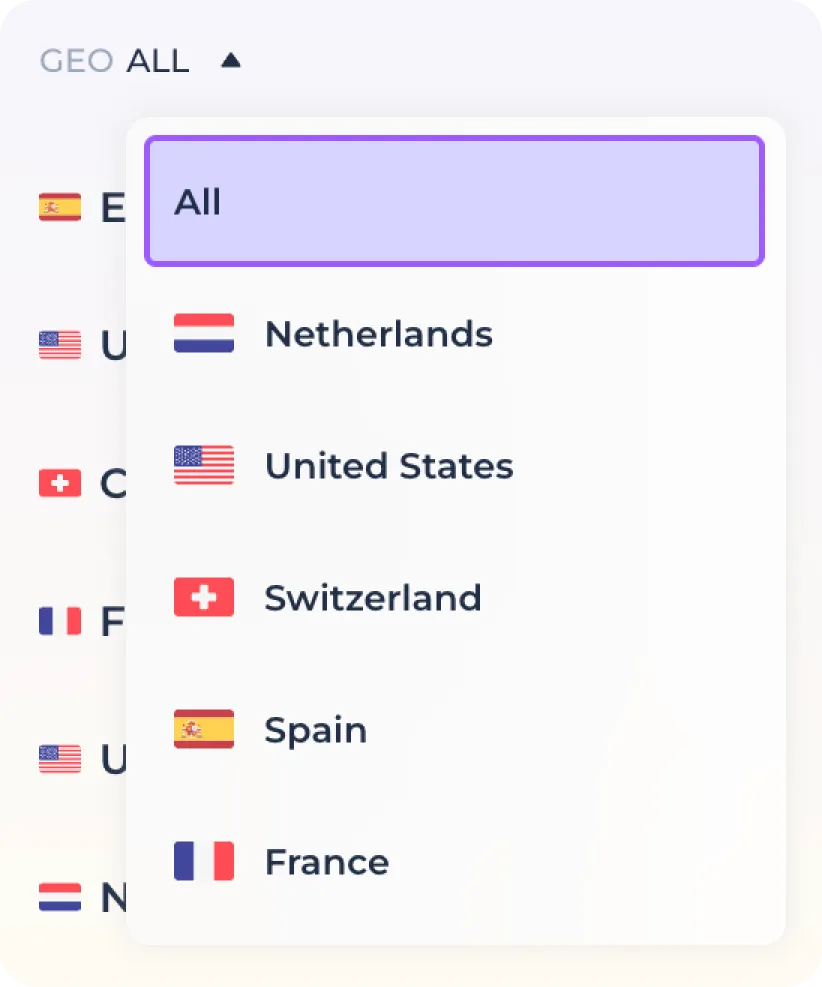
If necessary, you can use the function of filtering proxies by geo-position. To do this, use the filter and select the required country among the available ones.
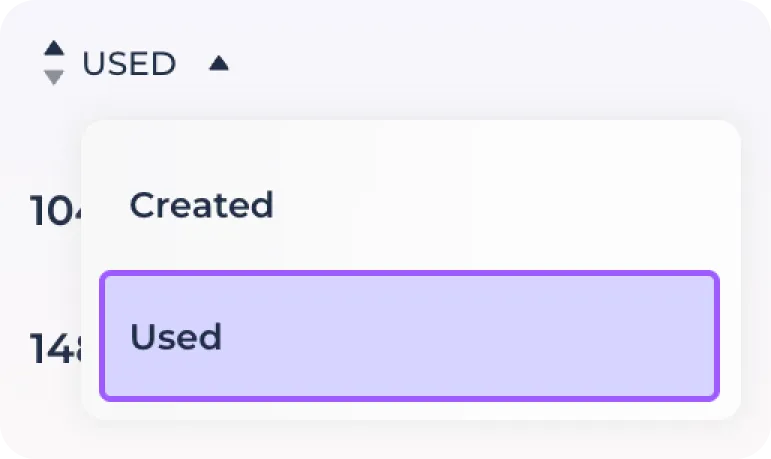
Or use sorting by add/use connection.
Use the general checkbox or the Shift + Click key combination to select a connection in bulk.
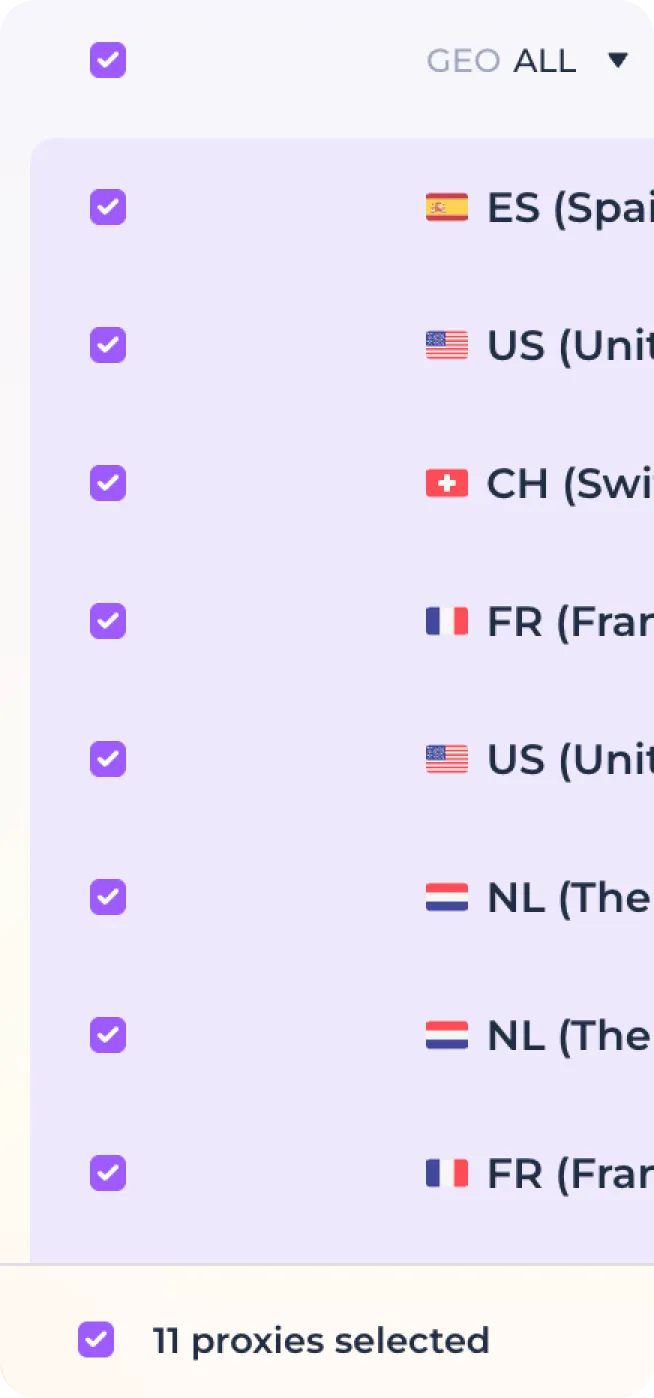
If you select multiple proxies, you will see a pop-up mass action bar.

To deselect the mass selection, click on the checkbox next to the display of the total number of selected connections.

To mass check the connection in the selected proxies, click on the "Check Proxy" button.
To delete the selected connections, click the "Delete" button.

In order to check the selected connections and automatically remove the failed proxies, click the "Remove failed proxies" button.
