How do I change the connection used by an identity?
Quick connection change
When you create an identity, you get a connection preset in the preset - by default, built-in proxies with random geo-positioning are used. To quickly change the outgoing IP address in the identity without changing the country, click the update icon next to the data of the IP address of the connection being used.

To change the country of the outgoing IP address or connection type, click on the geoposition of the connection being used.

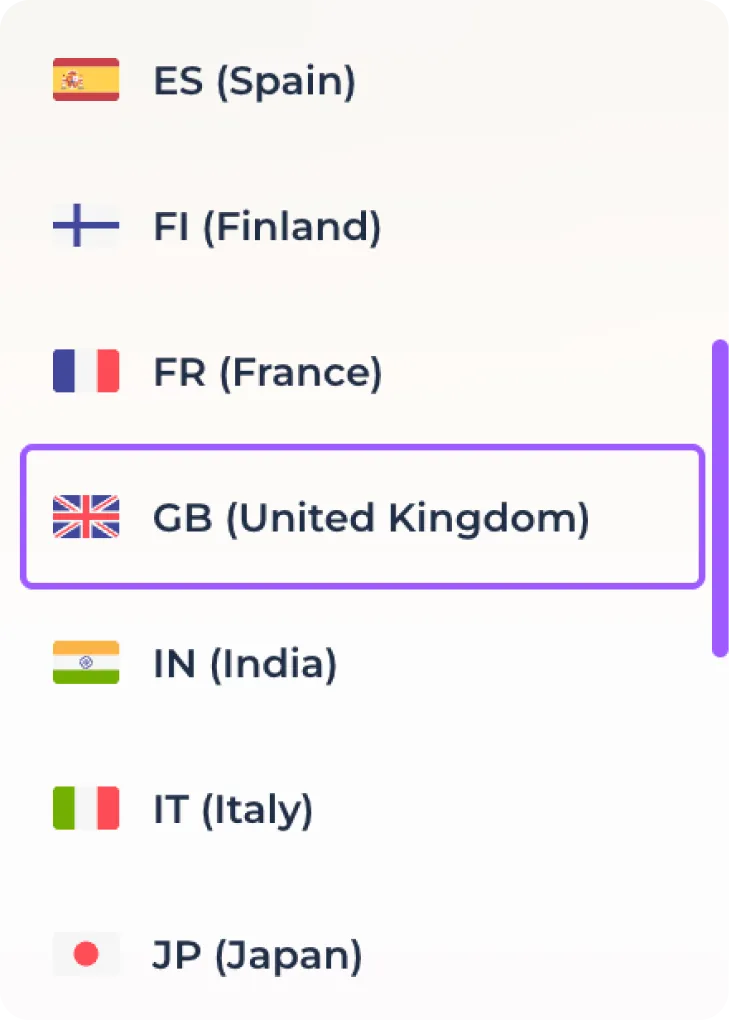
After opening the connection editing window, you can change the country of the outgoing proxy address using the drop-down list.
Use the connection test button to make sure that the selected proxy is available.

Use the IP address update button to obtain a different outgoing IP address within the selected country.
Click "Save" to apply the changes or "Cancel" to leave it as it was.

If you want to use a different connection type, use the drop-down list of built-in connection types.
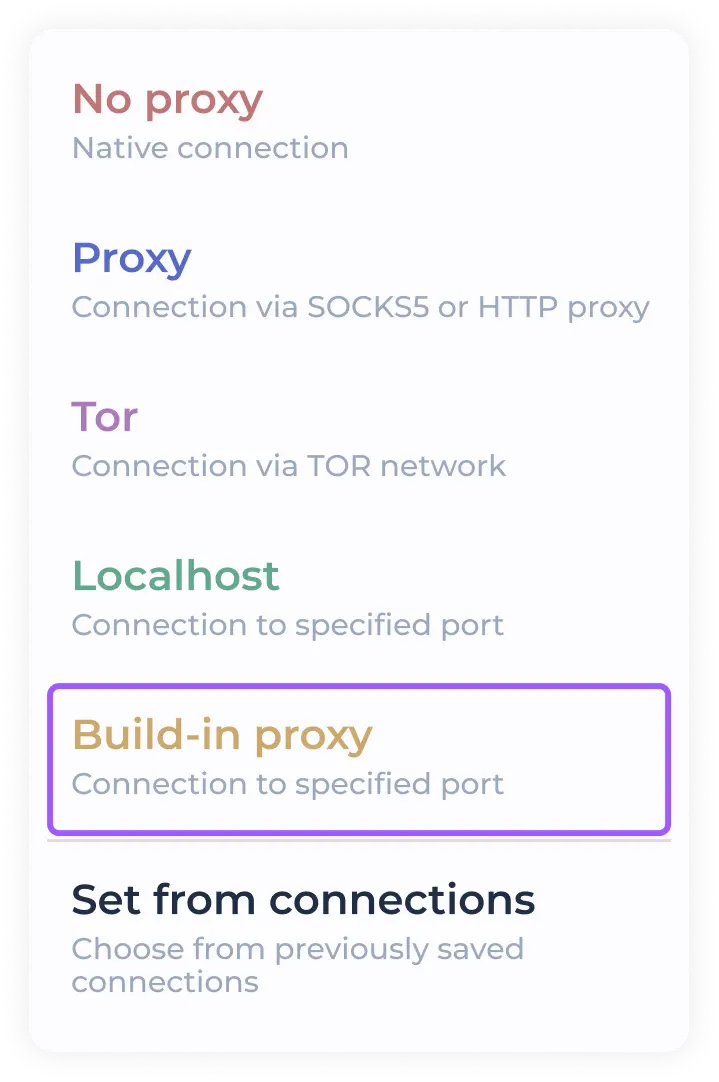
The program allows you to use the following connection types:
Direct - direct connection (the Internet connection of your computer is used). If you use VPN or proxying before the program, it will be used.
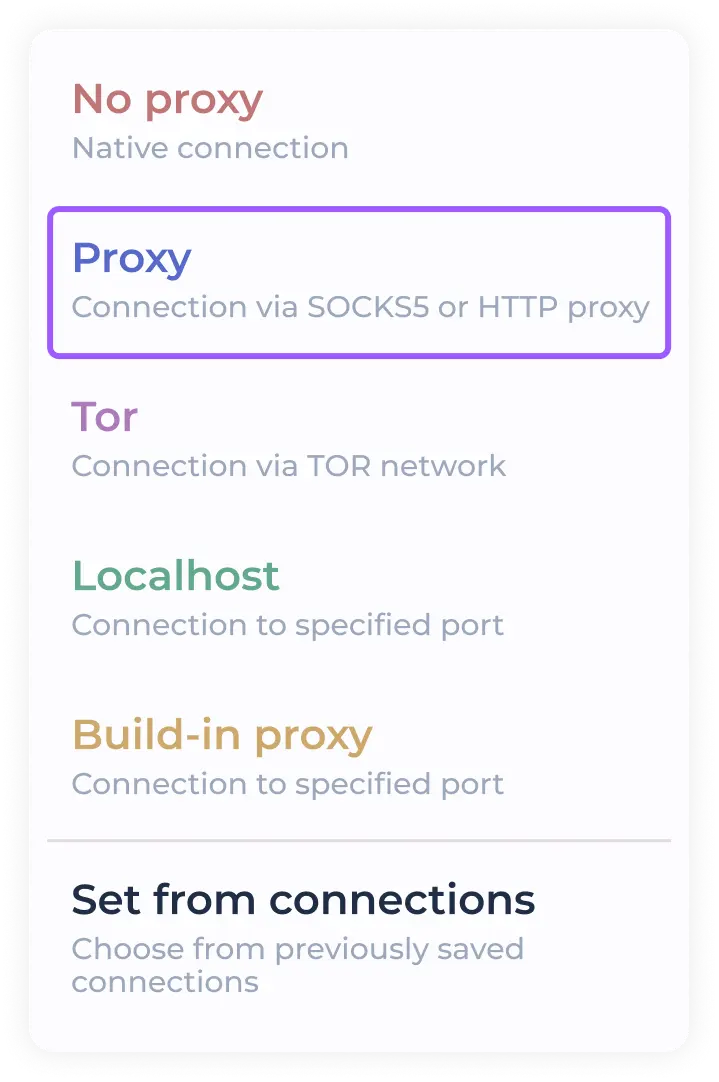
Proxy - you can use your own proxies in SOCKS5 or HTTP format
TOR - using the onion network for connectivity
Localhost - connection using the selected port (in case your proxy client uses proxying per port)
Built-in proxies - free built-in proxies with outgoing country selection (used in the preset by default)
Setup from "Connections" - quick access to previously saved proxies (when using custom proxies, they are saved automatically)
Using custom proxies in SOCKS5/HTTP format
Select "PROXY" from the drop-down list of connection types used.
Enter the proxy data for the connection in the preset format in the field provided.

You can see the list of supported formats when hovering over the input field (with tooltips enabled)
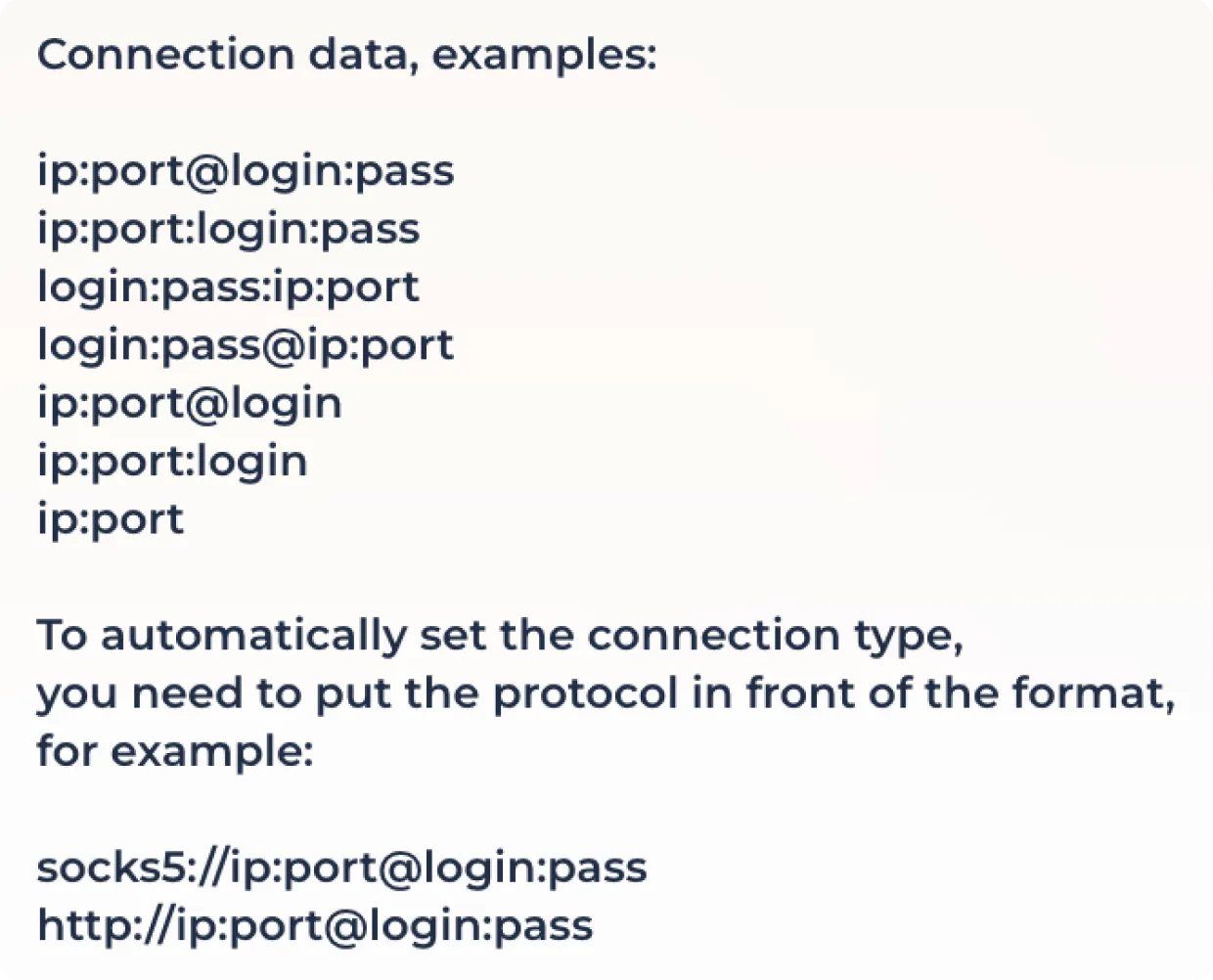
Click the proxy check button to check the connection and set the geo position.

Some proxy providers provide the option to use a proxy with outgoing IP address change via a link. If you need to use this feature, enter the IP change link in the field provided.

Click "Save" to finalize the proxy configuration or "Cancel" to reset the changes.

When using a SOCKS5/HTTP connection with an active proxy rotation link, you can change the outgoing IP address using the update icon next to the IP address used.

Using TOR
To use the onion network, select "TOR" in the connection list.
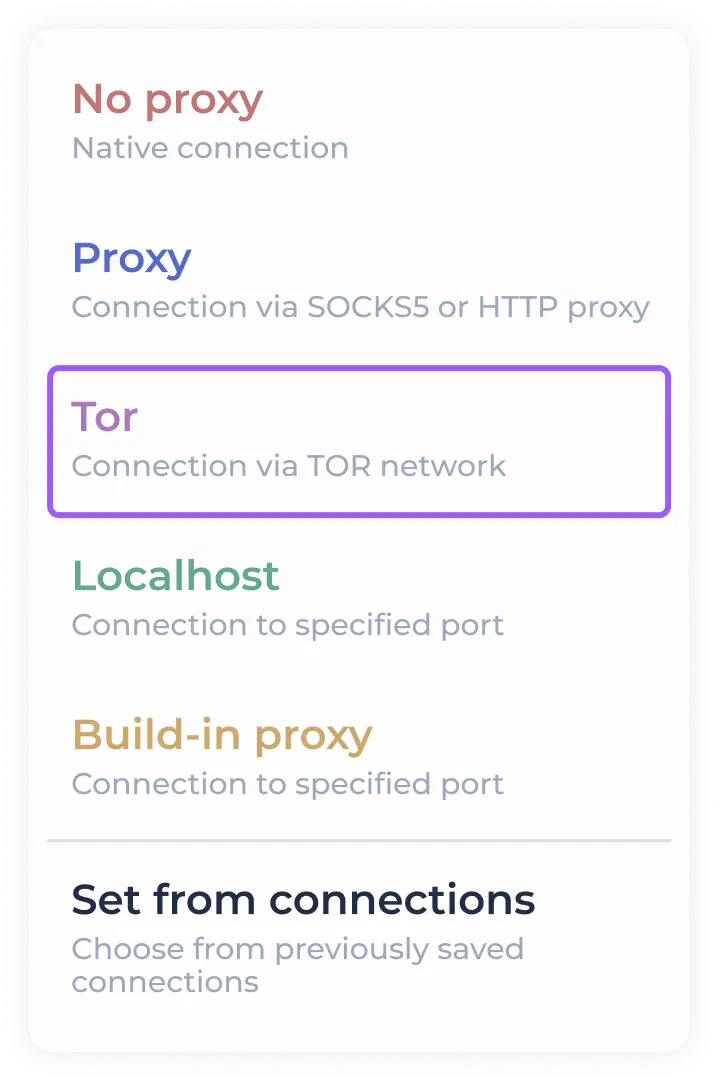
Click on the connection test button to establish a connection to the TOR network.

Use the outgoing IP address change button to connect to another node.
Click "Save" to finalize the proxy configuration or "Cancel" to reset the changes.

To quickly change the node without entering the connection editing window, use the update icon next to the IP address you are using.

Using Localhost
To use proxying per port, select "Localhost" in the connection list.
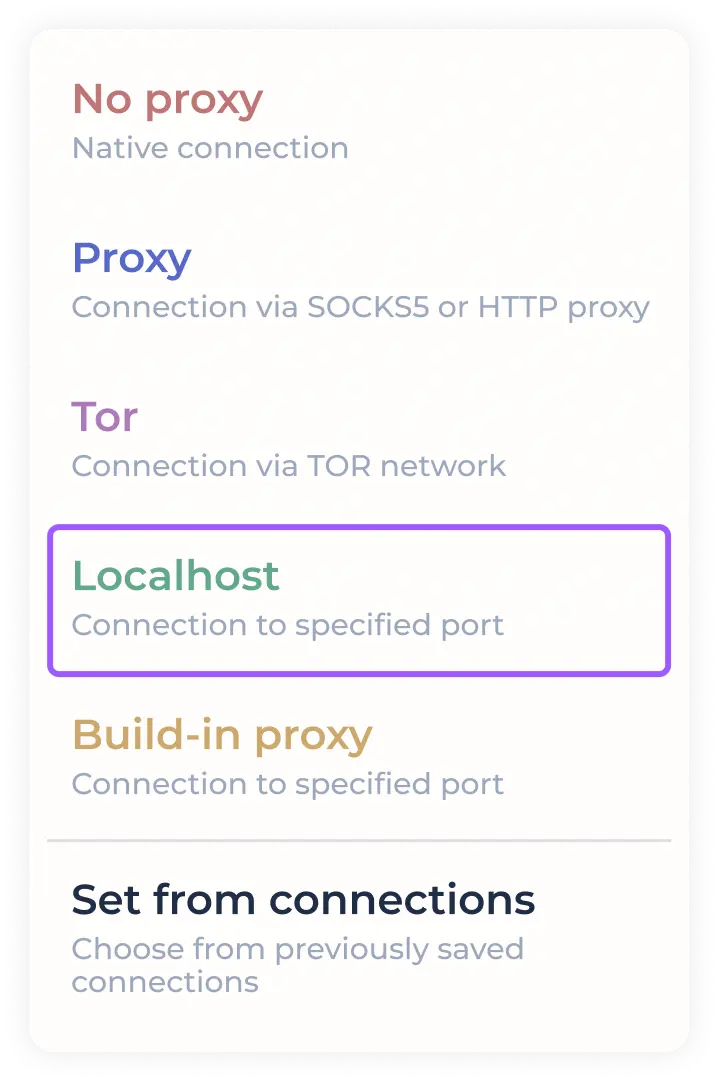
Enter the address of the port to be proxied to in the appropriate field.

Click the connection test button to check the connection and set the geo position.

Some proxy providers provide the option to use a proxy with outgoing IP address change via a link. If you need to use this feature, enter the IP change link in the field provided.

Click "Save" to finalize the proxy configuration or "Cancel" to reset the changes.

When using proxying to a port with an active proxy rotation link, you can change the outgoing IP address using the refresh icon next to the IP address used.

Establishing a connection from previously saved connections
To quickly set a previously used/downloaded SOCKS5/HTTP proxy, select "SET FROM CONNECTIONS" from the connection drop-down menu.
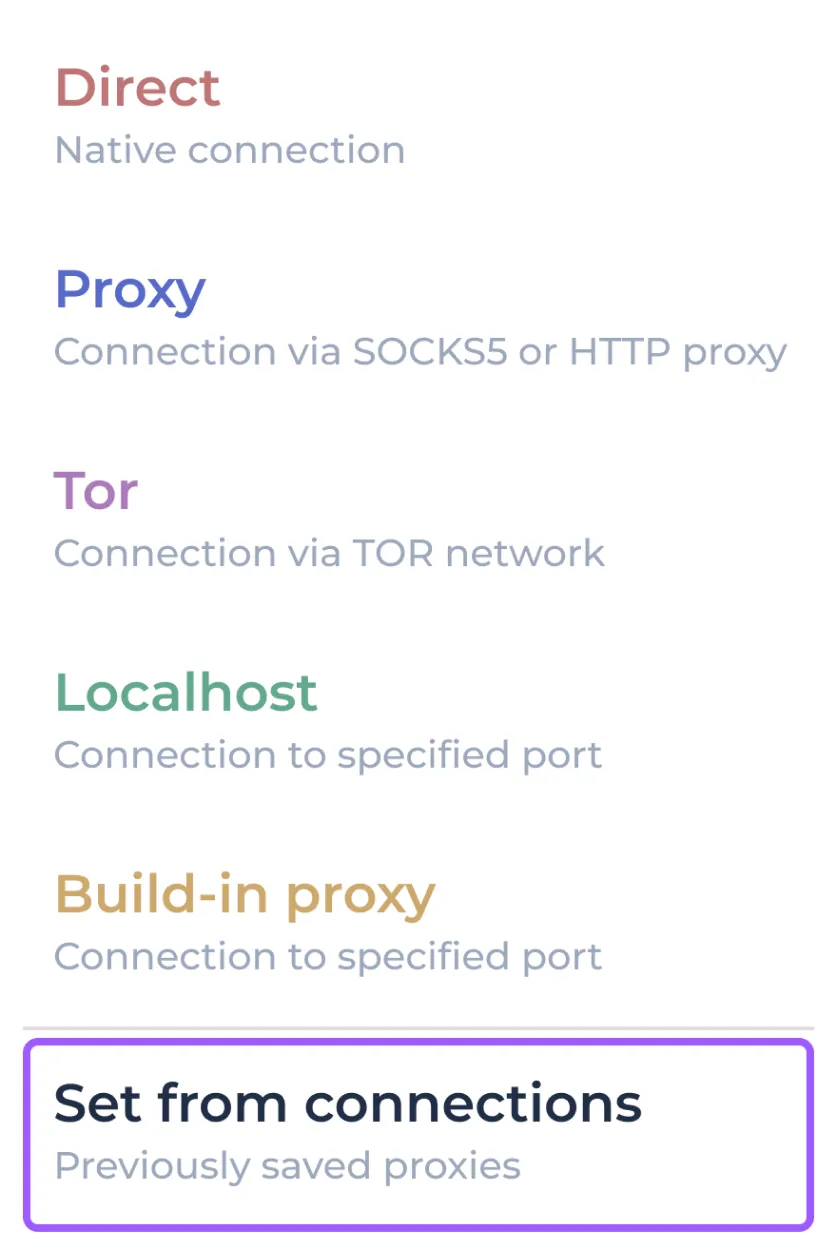
In the opened window with previously saved connections, select the required proxy by clicking on it.
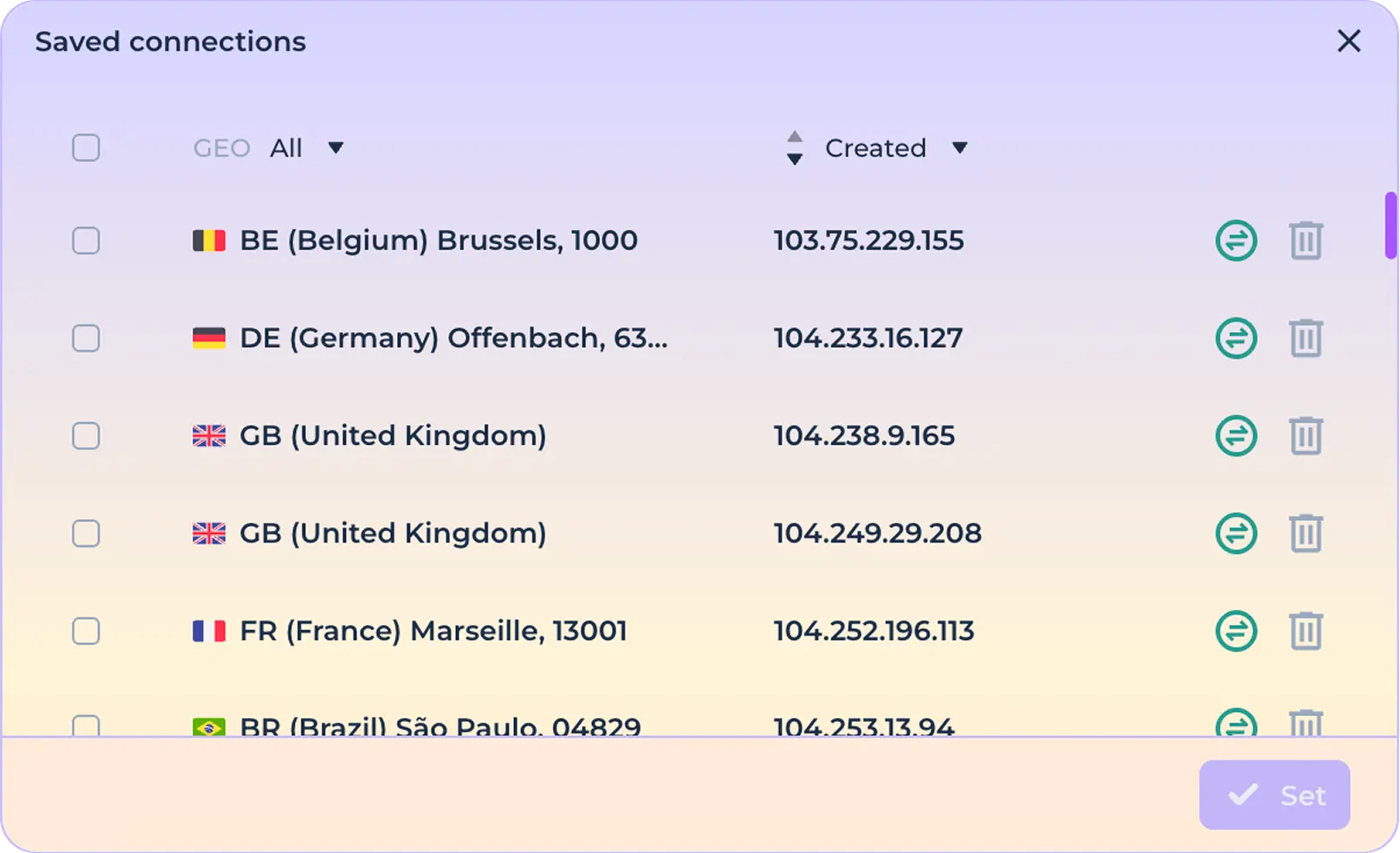
Click the "Set" button to finalize the configuration of using the selected connection.

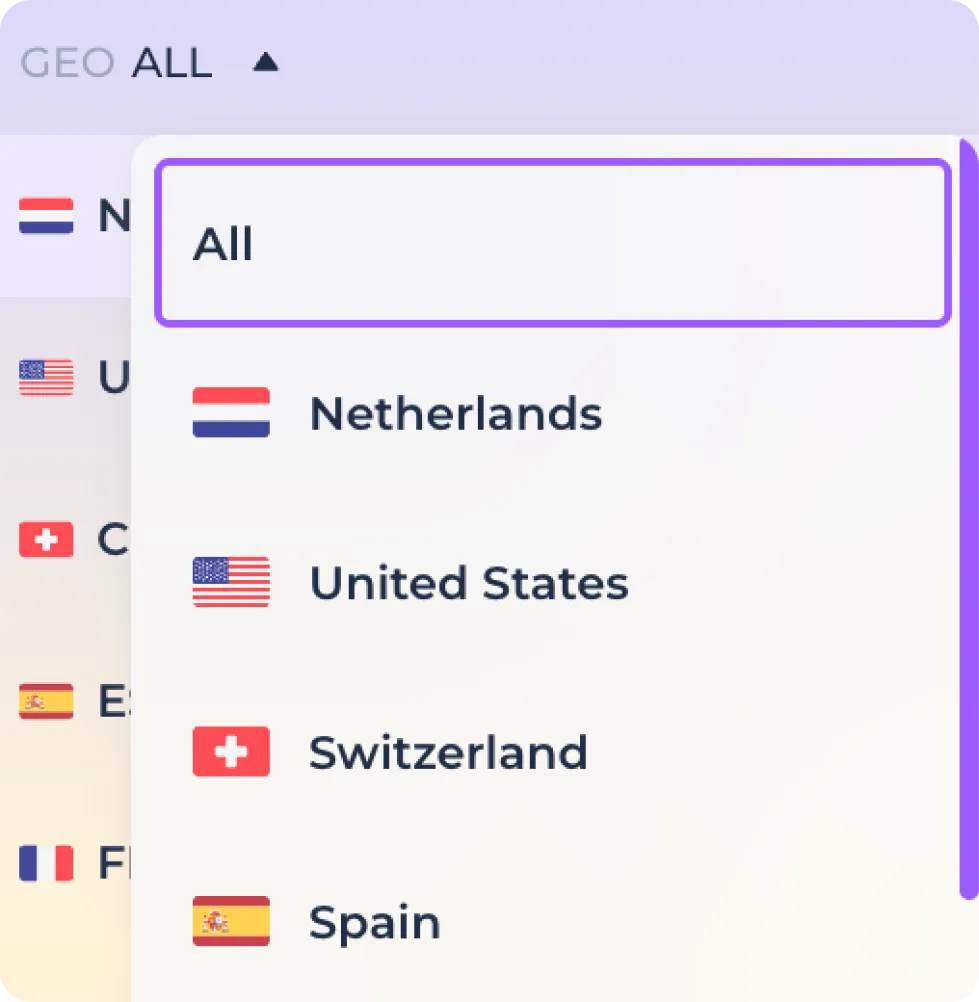
If necessary, you can use the function of filtering proxies by geo-position before installation. To do this, use the filter and select the required country among the available ones.
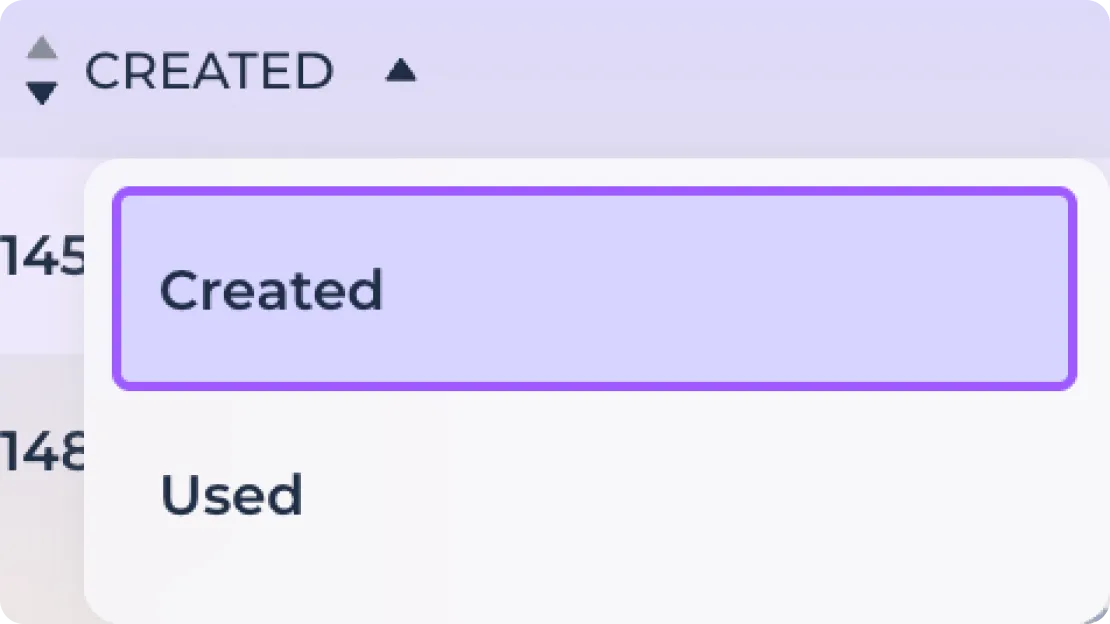
Or use sorting by add/use connection.
If necessary, you can check the connection before installation using the connection check icon.

Use the delete icon to remove an unwanted connection from the list of previously saved connections.